Cursor
If you’re using Cursor as your AI coding agent, follow these steps so the Dagster skills are available. Once they’re installed and enabled, you can use prompts like /dagster-expert in later lessons.
1. Install Cursor
Install Cursor from cursor.com and sign in.
2. Add the Dagster skills
The npx command comes with Node.js. If you don't have it installed, install Node.js first.
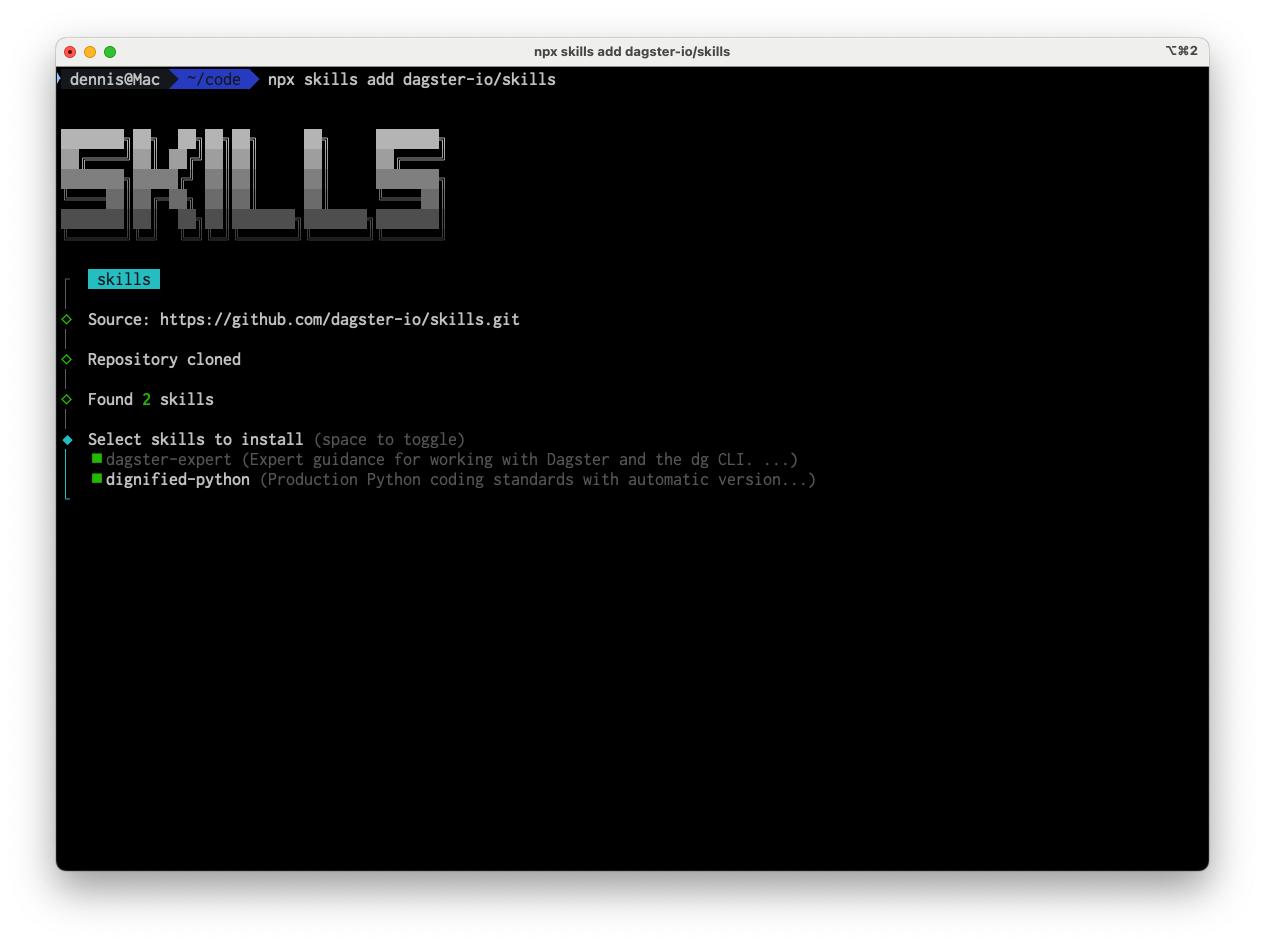
Install using the npx skills command-line:
npx skills add dagster-io/skills
3. Ensure the Dagster skills are enabled
Confirm that the Dagster skills are enabled. You want at least:
dagster-expert: for project structure,dgCLI, and Dagster patternsdignified-python: for Python best practices
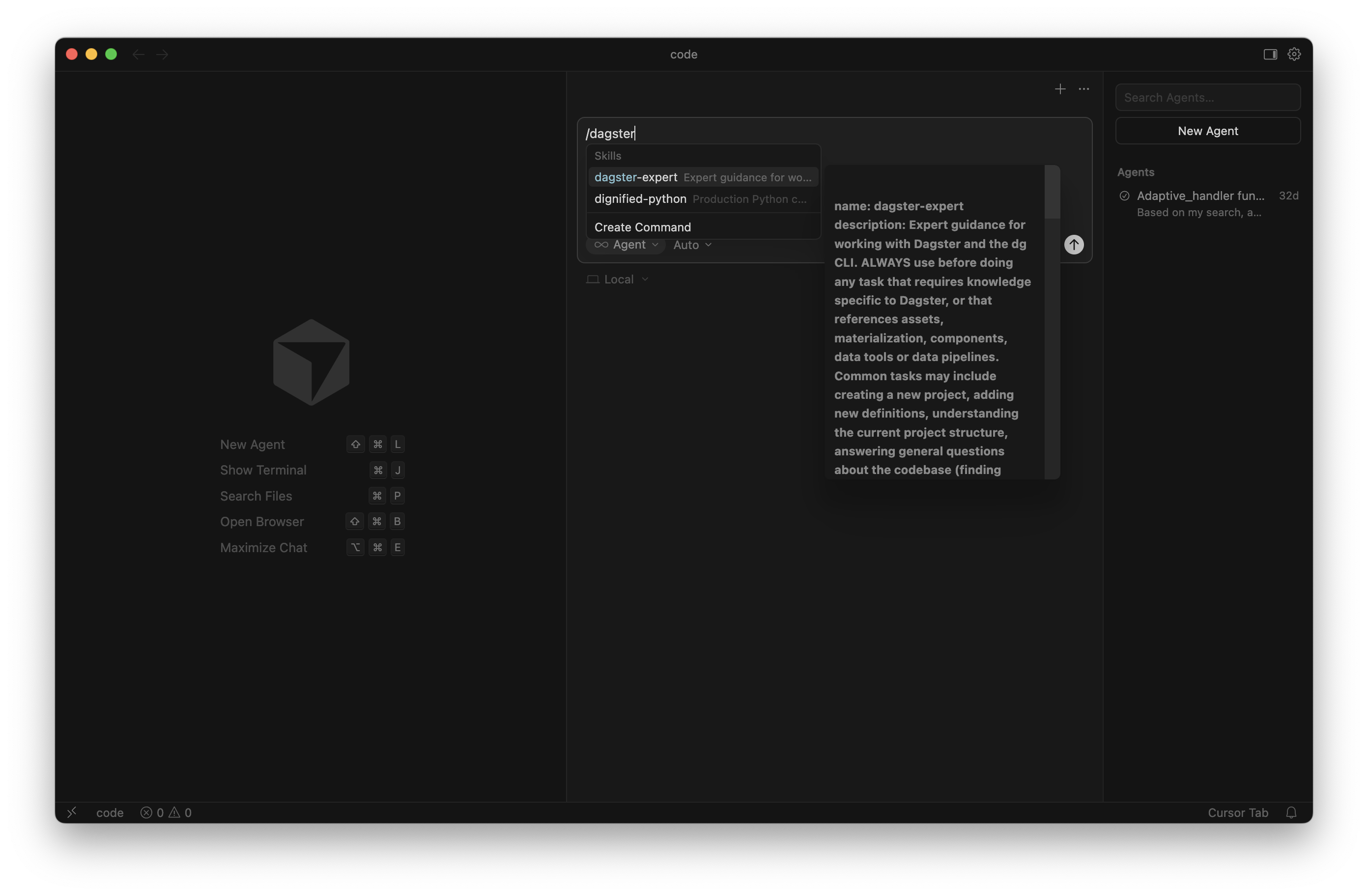
Skills are often invoked by typing / in the chat and selecting the skill, or by including the skill name in your prompt.
How to invoke skills
In Cursor’s Agent panel, skills installed via npx skills are available as slash commands. Type the skill name prefixed with / at the start of your prompt in the Agent chat:
/dagster-expert create a new Dagster project called university
Cursor loads that skill’s context before responding. You’ll use this pattern throughout the rest of the course.
You’re set
Once the Dagster skills are installed and enabled, you’re ready for Lesson 4. In later lessons you’ll use prompts that invoke these skills so the agent follows Dagster best practices and uses dg for scaffolding and validation.